CamPaper is program that uses internet to download 3rd party web
camera pictures and make them your windows wall paper.
INSTALLATION
Download/run the CamPaper program from this web site. It will
automatically install and be set to AutoRun next time your PC is turned on.
HOW TO USE
Note: if you have problems just close CamPaper (Alt+Ctrl+Del)
and do full re-install
CamPaper runs quietly on the taskbar as a Yellow triangle.
(Red if can't make an internet connection)
Right click on icon to see options of
Maximize: Pops Up Program,
Minimize: to send Program back to task bar
Refresh: to update picture (Re downloads and displays picture as your
wallpaper)
Visit:
to visit web site picture is hosted
Quit: to Stop running program (Good to do if your playing games or watching
video on PC)
Note: Program will run on reboot as long as as AutoRun is on
You can restart program from icon on start up menu or desktop.
By Default most sites are set to update every 5 minutes, but many
can be set to every minute or less
Use Options/Edit Site list to add cameras and picture directories
NOTE: to add a picture directory go to bottom and click on an empty Server/Folder field then 'DOUBLE CLICK' for popup to browse to your photo folder
or type in path
MUSIC - New menu bar to select music.
Adds Favorites - view a web cam then click on Favorites and it will be at top of list
shortcut Ctrl+F for adding favorite or clicking on Heart (top of list)
CONTROLS
Menu: View controls are listed above
Option: Check for updates - see if new builds posted
Unlock code - enter code you receive on purchasing license
Settings - Turns on or off AutoRun
Save Pictures: Stores downloaded pictures to the application subfolder as
timestamp files
You can use a jpg to video program like "JPGAvi"
to create a movie.
Warning: saving downloaded pictures can use up a lot of disk space. You will
want to delete them occasionally
Edit Site List - Loads setting.ini list of cameras.
WARNING: an incorrect entry will cause errors, always make a backup before
modifying
* Only modify Key type "1" - deleting Key field will remove camera record
from list
* All fields must be filled or Program will terminate on loading
* Always tab off field to update it. Entries are written on closing form
* Selecting "Reload Site List" allows immediate testing of changes
Help: Website - opens web browser on CamPaper website
Tips - View some quick tips and FAQ
About - Program version info
WEB LIST - Distribute your own list of web pictures to friends
Adding a type 3 web list to the setup.ini list allows for DYNAMICALLY changing picture list Each time CamPaper opens or list reloads it downloads an updated list of pictures from your website
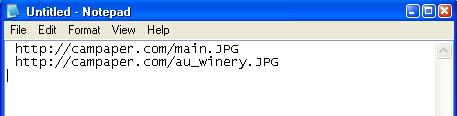
Create a list using notepad and save it in a server as a .ini file
i.e. http://campaper.com/test/test.ini
the list is just a link to a jpg (Remember link is case sensitive so .jpg and .JPG and .Jpg are 3 different files)
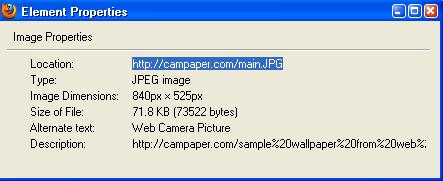
(1) Find picture you like on web and right click on it and open properties to copy location
(2) Paste into notepad - one picture per line
(3) rename file as list.ini and ftp/upload to your server
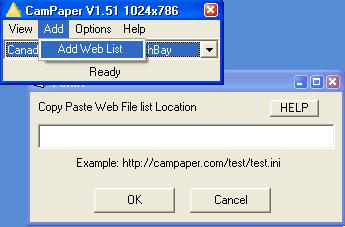
(4) your friends can copy past this list link into CamPaper by using add menu option
------------ ADDITIONAL NOTES ------------------
in the setup.ini file a LIST looks like this "3","*Sexy Samples (make your own list)","http://www.campaper.com/list/sxy.ini","","1","","9","","","","","","","","" "3","*My Web Picks","http://www.campaper.com/list/list.ini","","1","","9","","","","","","","",""
Note: use: Build 51 or later
FAQ
* Sorting Camera list
Select Options/Edit site list then click on sort button
Note: sorts does not change sort/fav numbers 1-9 but starts at 10 so your favs numbered 1-9 will stay at top of list
Note: you can have multiple favs with same number i.e. use 1's for most favorite sites and 2's for next grouping
* On switching to a different web camera nothing happens;
This is probably just a slow
connection and it may take up to a minute to download.
Also the picture may not have
corrupted. Try again later or try another camera.
* Why is wallpaper BLACK or never updates;
This is probably because
it is night time or that camera is off
* Why is wallpaper Grey?
It's probably San Francisco fogged in.
* Why is Camera list Pink
There was a problem getting the picture
(Try again or try another camera)
* The icon in the system tray is RED
This means a connection to the webcam server
failed (that server or the internet may be down)
* I don't see the icon in the system tray but it is running;
Minimize task bar (The bar with 'Start' on it) Open the Task manger
(Alt+Ctrl+Del) Right click on
task (Campaper) and minimize may make it appear then click on 'x' to put back in system
tray
* I'm having problems getting camera pictures
Well we rely on the internet connection to the
camera and the camera site operator and ISP, so sometimes things don't work
Try another camera site and/or try again
later
* What else can I download to my desktop?
Just about any jpg picture that you can view in a
browser can be downloaded to your wallpaper via CamPaper program
Technical
The Camera locations are loaded into the program from the
'setup.ini' file in the CamPaper's folder.
The entries can be changed, added to or deleted, but the
format must be exact
i.e. line (Use notepad to modify, leave no blank or
trailing blank lines, make backup first)
1,Canada-Vancouver
Harbour,ww2.vancouver.com,/cam/pic.jpg,1,Canada - BC - Vancouver Harbor
* Item 1: '1' for web camera; '0' for control line; other numbers
reserved; '2' for folder; '3' web list
* Item 2: Description of site as it appears in the selection
dropdown
* Item 3: Source -The hosting computer IP i.e. "www.fallsview.com"
(Can include port if not default 80: i.e. "68.15.12.110:8003") or Path to directory 'C:\MyPictures'
will load jpg - network path not allowed i.e. \\myserver\mypictures
* Item 4: The web pictures name (Just the picture not the
page it is on. should end in a .jpg or .gif)
Blank if computer folder was used
* Item 5: The frequency of updates in minutes.
(Min. is 1 minute,
normal would be every 5 minutes. depends on site Note: .5 fraction can be used for fast rotations)
* Item 6: Picture Resolution Optional (Not used with picture folder)
* Items 7 sort order (Note: 1 thru 9 protected from sort, multiple same sort numbers ok i.e. you can have many 1 which would be a top of list
favorite)
Note: updating camera list will replace your list
Note: commas separate field items, make sure there are no commas
in description (There must be 5 commas ONLY)
See
bottom of page for example
SHAREWARE
Until you purchase license CamPaper runs in trial mode
That means it is a full functioning program but you will see a
popup prompting you to buy CamPaper
This popup is set to appear on about every dozen picture
loads. Just click ok to continue
You can purchase an unlock License on this website that
will remove this popup request.
UNINSTALL
First open CamPaper and go to Options/Settings and turn off
AutoRun (Un Check) then click on OK
Next Quit CamPaper and go to windows control panel and select
Add/Remove Programs
Select CamPaper and uninstall.
NOTES
CamPaper is at the mercy of other person's web cameras and internet
bottlenecks.
Because the cameras are located around the world it may be night time and
that camera may be off causing a black or a static picture.
You can go directly to the camera's webpage to see directly if there are
any issues.
Sometimes a web camera may be off line or having technical difficulties. A
lot of the great views are provided by kind individuals who share thier
grate views with us but they are not doing it commercially or providing a
guaranteed service.
Occasionally a host camera may change its web location causing an off line,
static picture or an error, in this care the webcam setup file must be
modified to reflect the changes, you can also inform us via email ans to
camera/web changes or of new great sites you have found and think should be
added.
DISCLAIMER
This program is Licensed "as is" and without any warranty, express or
implied, including but not limited to non-infringement of third party
rights, performance or merchantability.
Because of the diversity of conditions and hardware under which this
program may be used, no warranty of fitness for a particular purpose is
offered.
The user is advised to test the program thoroughly before relying on
it. The user must assume the entire risk of using the program.
The author will assume no liability for any direct, indirect,
incidental or consequential damages resulting from the use of this software.
The author does not guarantee that this Software will work in every
environment.
The pictures you download are the copyright of the website owners.
Sample Setup.ini file (NOTE: requires build 1.42 or higher) ===============================
Refresh Interval can be set very fast using 0 "continues - after
loading picture it immediately start another download"
and .1 to .5
for fast fixed time reloads.
You have to play with setting because it depends on your connection to web
camera's server
Note if image cannot download with in interval then it is cancelled &
restarted (i.e. nothing happens)
This is a cool feature that can be used for making videos.
**** WARNING: Fast reloads can have undesirable side effects - use at own
risk ****
NOTE: If updating picture stops when using '0' interval try refresh to
resume.
Running multiple CamPaper is possible if set up in different folders.
Only two files are required in folder. NOTE: setup/option settings are
shared
If things get really messed up then stop program (use alt+ctrl+del) to kill if required
and download the installer again.